DYMO LabelWriter 4XL Thermal Label Printer
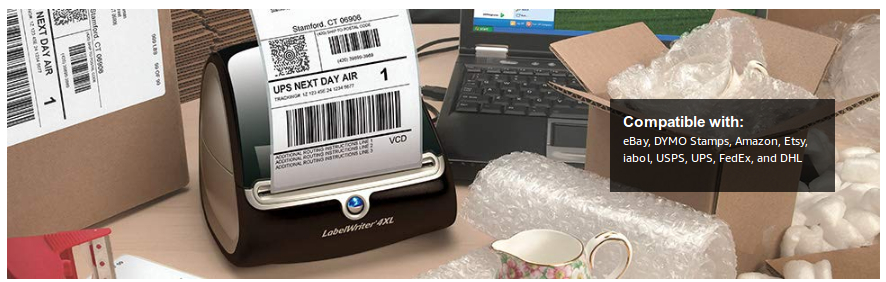
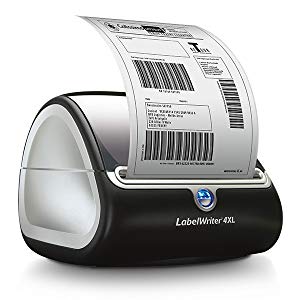
The DYMO LabelWriter 4XL is a wide-format label printer that accommodates the entire line of LabelWriter labels for maximum flexibility and is also compatible with a variety of popular online selling platforms and shipping carriers. It's ideal for extra-large shipping and warehouse labels, including 4-inch international shipping labels, along with label styles for file folders, name badges, online postage, standard mailing and shipping labels, and more.Easy High-Volume Jobs
- Quickly & easily print labels directly from popular programs, including shipping & selling platforms
- Included DYMO Productivity software provides printing capability, including graphics, barcodes, etc.
- Print USPS-approved postage with the included DYMO Stamps software
- Compatible with Windows 7 or later and Mac OS X v10.8 or later
Setting Up Your DYMO LabelWriter 4XL

1. Install Software Do not connect your printer until after the software installation is complete.
2. Connect Your LabelWriter Printer Connect the power adapter to the power cord and plug into port. Plug USB cord into port and connect cable to computer USB port once software installation is complete.
3. Load Labels Remove protective labels found in printer. Place new label roll on the spindle and insert the label spool into the slot in the printer cover. See user guide for detailed step-by-step instructions.
4. Print Your Label Double-click button to start. Select label type and a layout. Once in Edit area, add customized text. Click Print to print label.