NetAlly's OneTouch AT Network Assistant tests end-to-end path performance for wired and Wi-Fi Networks—all in one tester
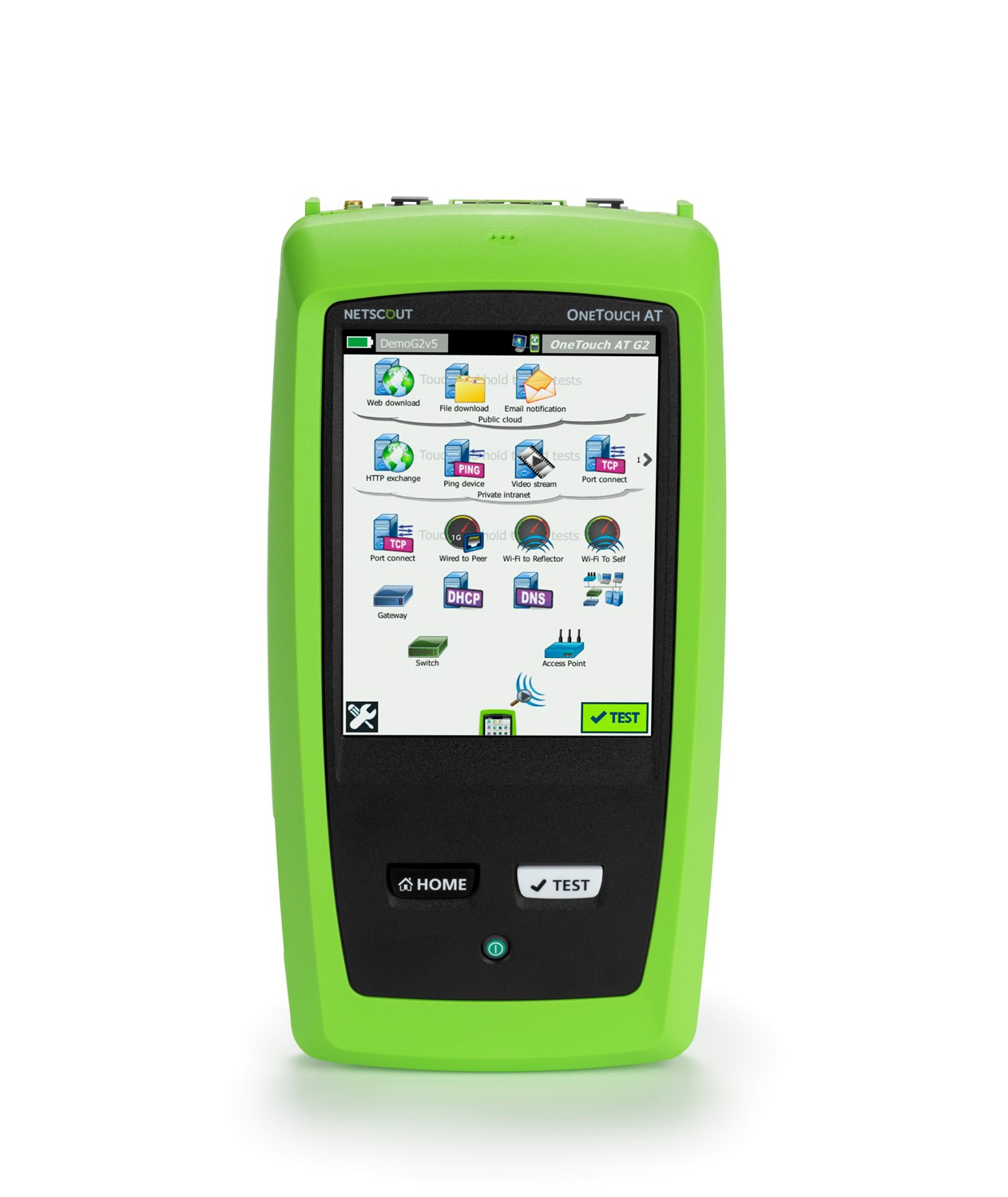
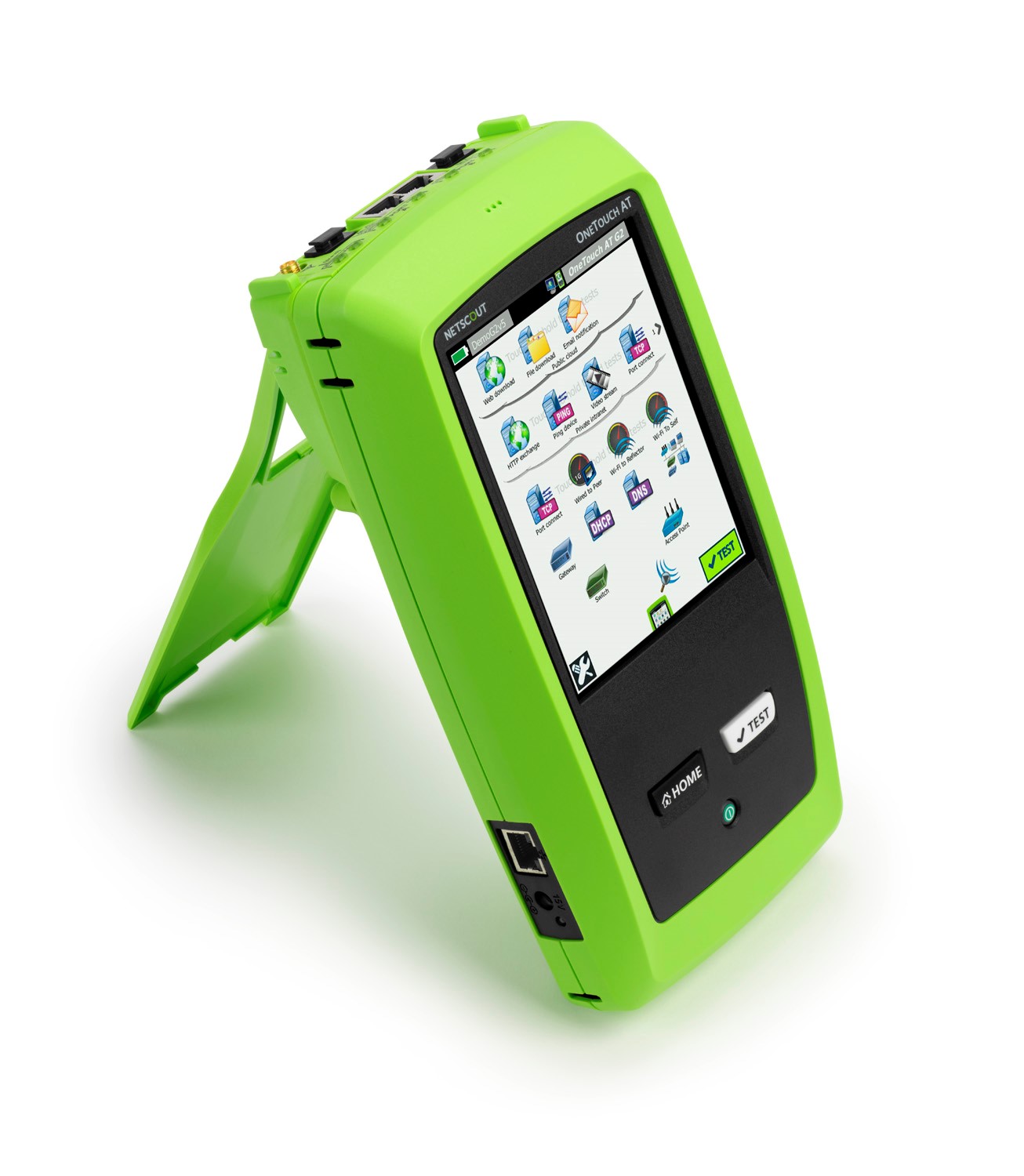
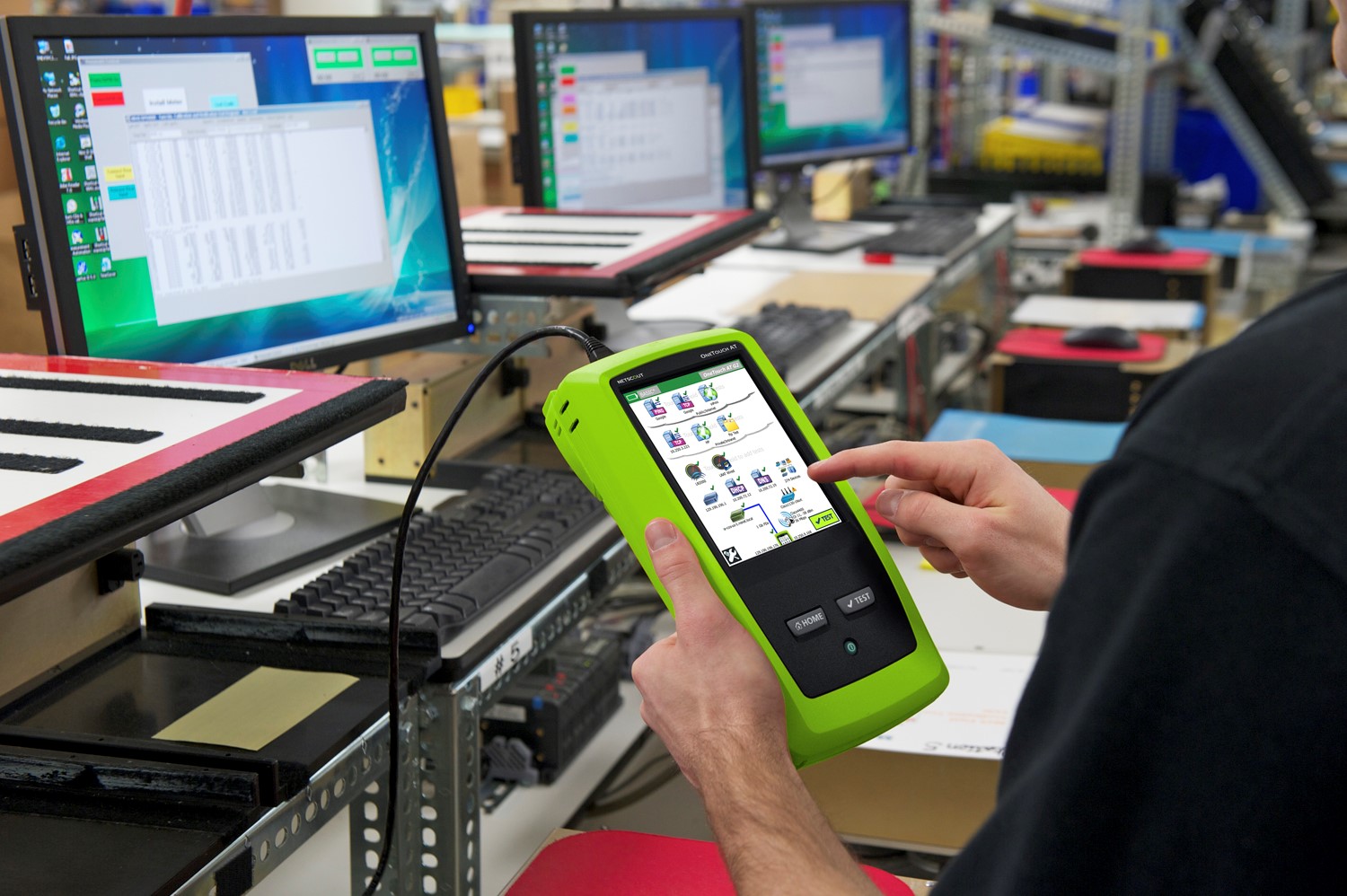
The OneTouch AT reduces the time network technicians spend validating and troubleshooting network performance problems. It provides all-in-one testing for Ethernet, Wi-Fi, network service and application performance. Multiple AutoTest profiles can be pre-defined by engineers so that field technicians can quickly validate a complete set of key parameters from the end user’s perspective and follow standardize troubleshooting procedures—allowing more IT projects to be completed on time.
OneTouch AT delivers a superior ROI by reducing problem solving time with a three step process:
- The AutoTest standardizes and reduces validation test time from hours to minutes, and empowers less-skilled technicians to be productive.
- For tougher problems, OneTouch provides a complete set of troubleshooting tools for Gigabit, fiber-optic and Wi-Fi networks, from cable/RF health to application performance testing.
- Reduce project risk and troubleshooting time through collaborative workflow between field team and network owner with one-touch reporting, inline packet capture, and web remote control.
OneTouch AT technology differentiators include:
- User-programmable AutoTest for validating Wi-Fi and/or Ethernet network connectivity, health, and performance.
- Web and other application connectivity tests: Breaks out DNS lookup, time to first byte, total time, and throughput.
- Network Performance Tests: End-to-end test across wired and Wi-Fi networks to another OneTouch, LinkRunner, or SW reflector
- Inline mode: Monitor, analyze and capture traffic on copper or fiber links with programmable filtering and slicing.
- Inline visibility to VoIP, IPv6, TruePower™ PoE and 802.11ac.
- Cloud-Based Report Storage: Catches tough remote and intermittent problems with result logging and report sharing, and enhances collaboration with complete browser-based remote control.
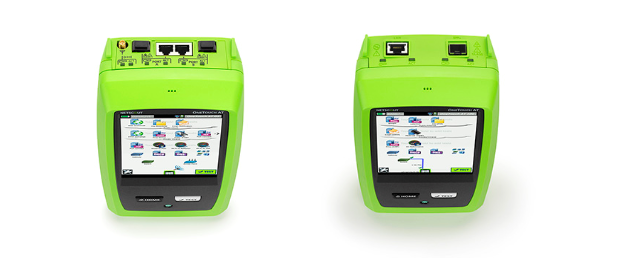
Versatile Copper, Fiber and Wi-Fi Troubleshooting
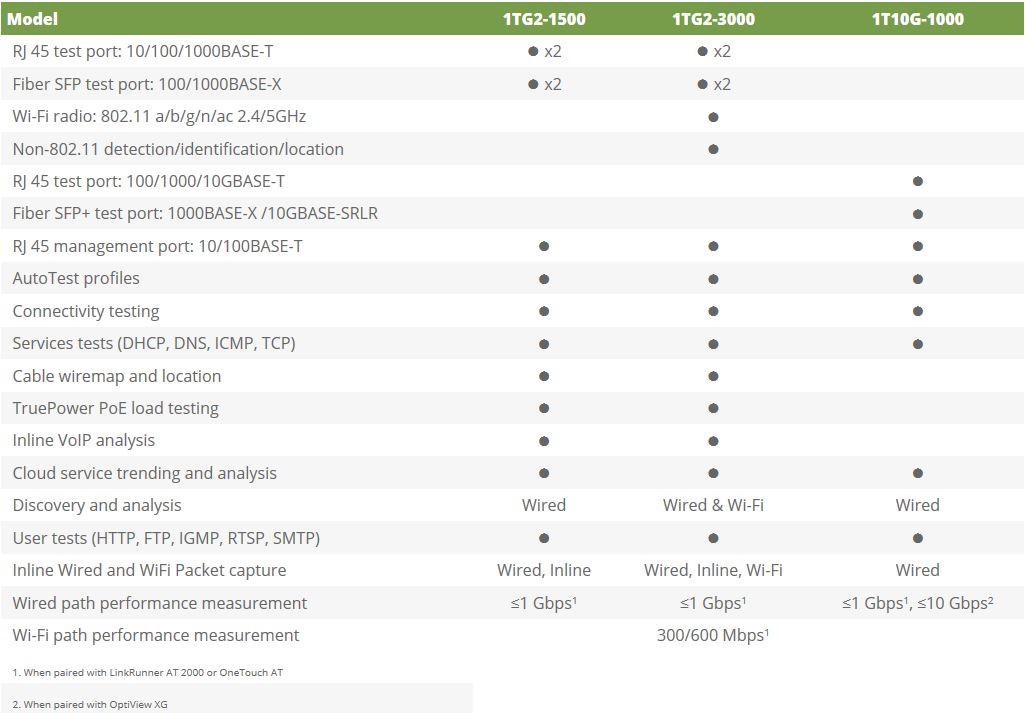
Be ready for a broad range of troubleshooting scenarios with the handheld OneTouch AT G2 Network Assistant. The tester incorporates dual copper and fiber-optic test ports to facilitate troubleshooting of 10/100/1000 Mbps twisted pair and 100/1000 Mbps fiber Ethernet networks. The dual ports simplify inline packet capture and VoIP monitoring by eliminating the need for mirror ports or taps. For troubleshooting Wi-Fi networks the OneTouch AT G2 tester incorporates an 802.11ac dual-band Wi-Fi radio with a 3x3 antenna. When connected to both wired and Wi-Fi networks, the tester displays test results side-by-side on a single page to aid in problem domain isolation.
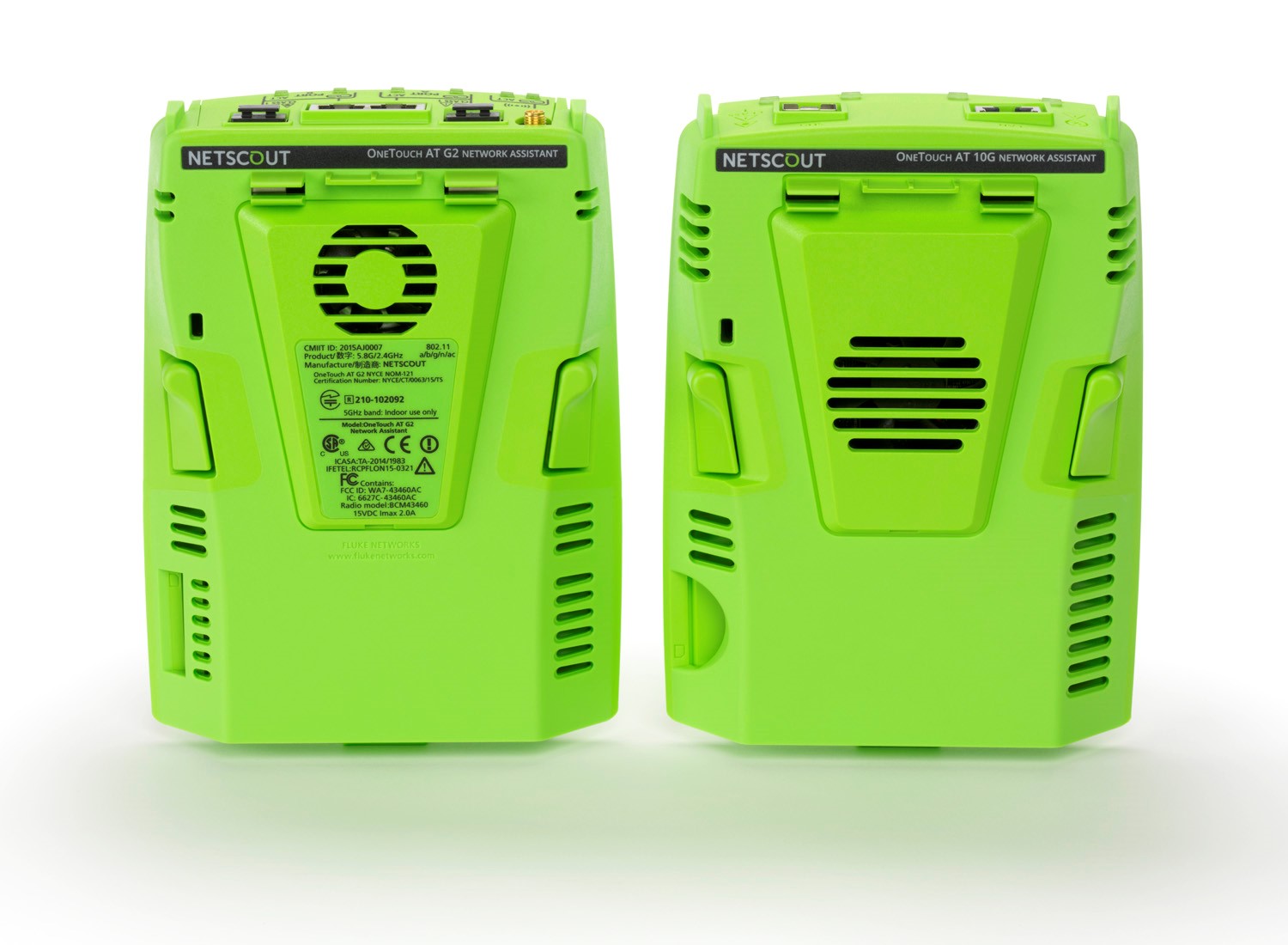
The OneTouch AT Network Assistant has a modular design. A 10G module is available for testing wired 100 Mbps to 10 Gbps Ethernet switch port and link performance at up to 10 Gbps rate.
Configurable Profiles for Standardized Testing
Use the intuitive touch interface and the Setup Wizard to create customized test profiles, in which a profile is a set of tests tailored to your network, services, and applications. Create simple profiles with only a few tests or advanced profiles consisting of dozens of tests. Profiles can be customized to accommodate different types of users, devices, locations or technologies, and can be saved for quick and easy reuse later. Create a library of standardized profiles to share with other OneTouch users to elevate the troubleshooting know-how of network support staff thus establish best practices for consistent, faster, more productive overall troubleshooting and network acceptance testing.
Simplify profile creation while learning about the tester’s capabilities by running the Setup Wizard. The wizard simplifies profile creation with step-by-step guided instructions, yes/no prompts, on-screen help and graphical progress indicators. Experienced users can bypass the wizard if desired.
OneTouch AT Model Comparison
Wi-Fi and Wired Client Devices Connectivity Testing
Understand how a client device connects to the wired infrastructure by testing link negotiation, identifying the nearest switch, and monitoring key switch port statistics. The OneTouch AT with G2 Module tests IEEE 802.11a, .11b, .11g, .11n and .11ac Wi-Fi networks. It shows how a client device connects to the Wi-Fi infrastructure by testing the link between the client and the nearest access point, identifying the AP name, channel and security type, observing the authentication and association process, and monitoring key AP and network statistics, including roaming details by AP. For Wired client, the OneTouch AT with G2 Module tests 10/100/1000BASE-T twisted pair and 100BASE-FX/1000BASE-X fiber-optic Ethernet networks, while the OneTouch AT with 10G Module test RJ-45 test port for 100/1000/10GBASE-T and 1000 BASE-X SFP/10 G BASE-SR/LR SFP+ Ethernet over optical fiber network.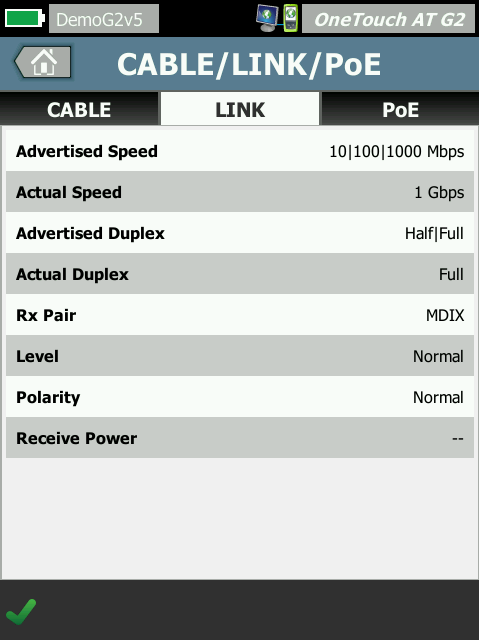
Network Services Testing
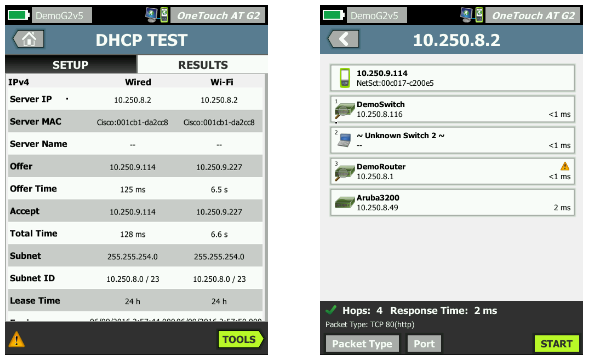
Test DHCP server responsiveness—Identify the wired and Wi-Fi DHCP servers and view the offer and acceptance timing and lease information.Test DNS server responsiveness—Identify the wired and Wi-Fi DNS servers and view the DNS lookup time. Also, determine if a second DHCP address is being offered. If unexpected or is a potential rogue server, use the path analysis tool—a layer 2 and layer 3 path analysis—to track down the device to mitigate a problem situation.
Network Application Testing
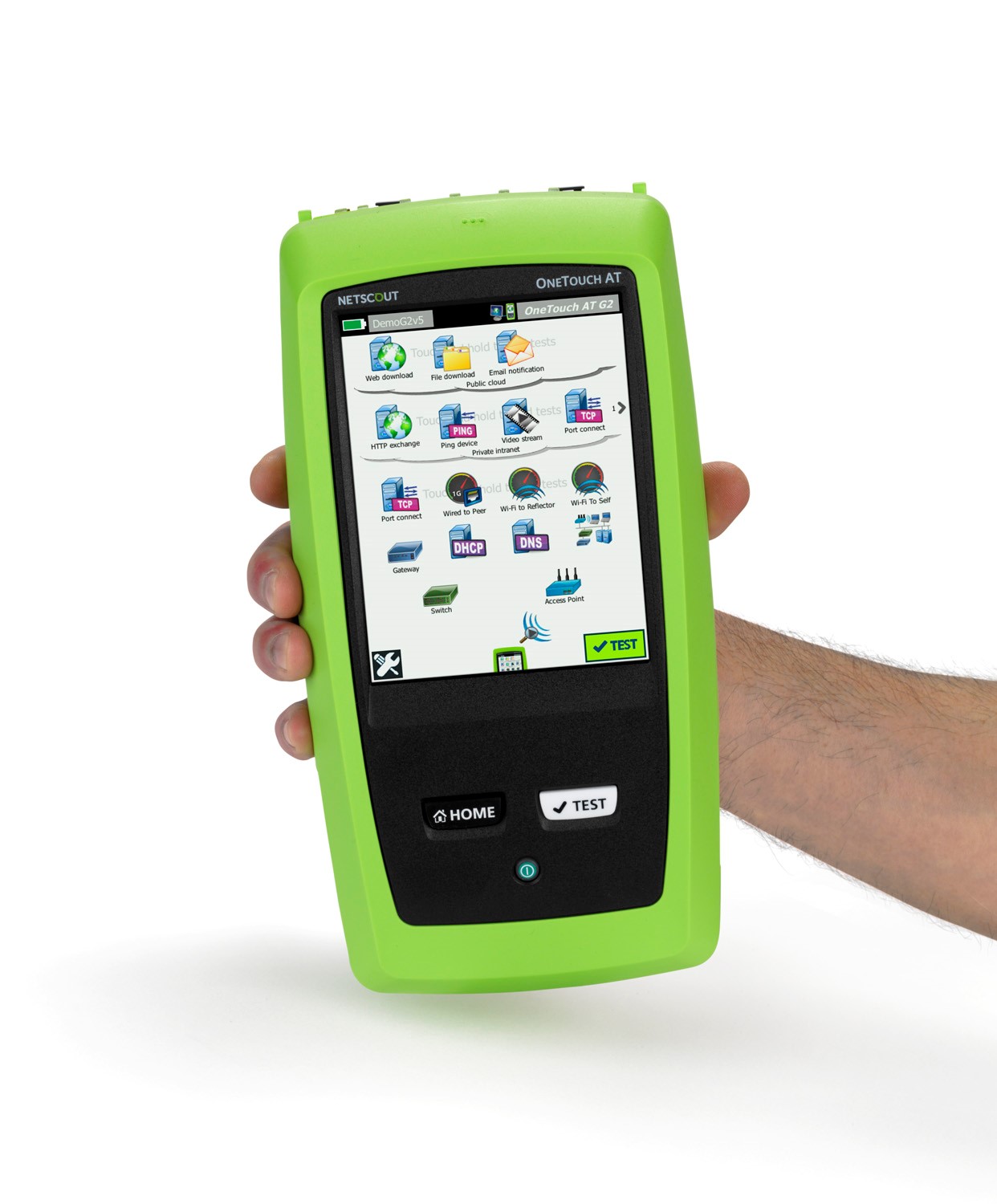
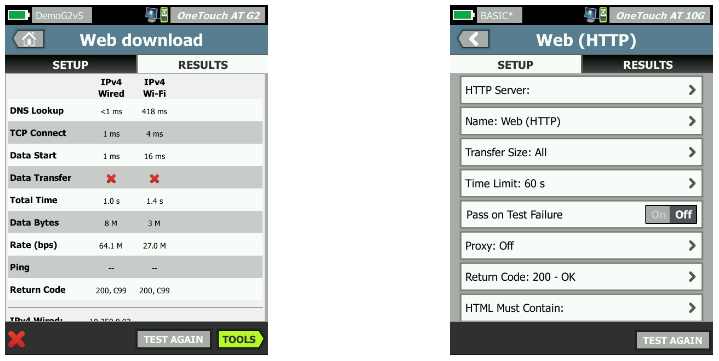
Determine if a server-based application is the root cause of a reported problem by measuring availability and responsiveness metrics. Add to the AutoTest profile the performance test appropriate for the application: ping (ICMP), connect (TCP), web (HTTP), file (FTP), multicast (IGMP), video (RTSP) or email (SMTP). Each test is graphically represented on the OneTouch AT home page as an icon. After running the AutoTest, touch a test icon on the home page to get a detailed breakdown of application performance including DNS lookup time, server response time and data rate.The test results are presented side-by-side for easy wired/Wi-Fi and IPv4/IPv6 performance comparisons. A few examples: ping your WLAN controller, connect to port 2000 on your VoIP call manager, download a page of an application with a web interface, upload or download a file from a server, subscribe to a multicast group, access video content from an on-demand streaming video server or email a text message to your mobile phone.
To verify security, you may want to verify that an application is not accessible as a part of the AutoTest. OneTouch allows "Fail on Pass" where failure in Ping, TCP Connect, Web and FTP can be granted PASS against overall AutoTest result.
Managers of remote teams can instantly view test results with Link-Live.
Cloud-Based, Centralized Test Results Management
Once the OneTouch AT is connected to the Link-Live Cloud service, both wired and wireless network connectivity test results and reports from the AutoTest can be automatically uploaded to the dashboard for project management and reporting. This cloud-hosted service is available from anywhere at any time using any device with a browser and an internet connection. It is especially useful for managers of remote teams that need visibility to test results instantly. In addition, teams that utilize the AirCheck G2, the LinkSprinter or LinkRunner have a single dashboard system to manage results from network connectivity tests as all these Handheld Network Tools connect to the Link-Live cloud service.Remote Visibility, Control and File Access
Use the built-in RJ-45 management port or optional USB Wi-Fi adapter to remotely control the OneTouch AT and access saved files. Any action that can be performed directly on the OneTouch AT using the touch screen can be performed remotely using a PC, laptop, tablet or smart phone. Minimize the time, expense and inconvenience of traveling to the client location where the problem was reported. Webcam support enables live, remote viewing of the physical environment near the tester. Remote control of units via the Cloud Service also allows traversal of NAT devices, which is very advantageous when troubleshooting from outside the office.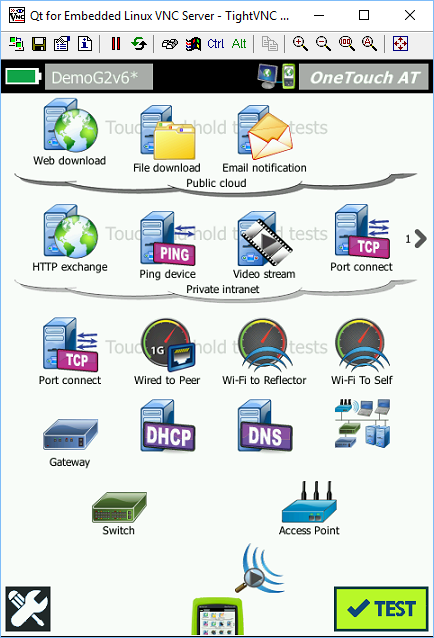
Wired Network Discovery and Analysis
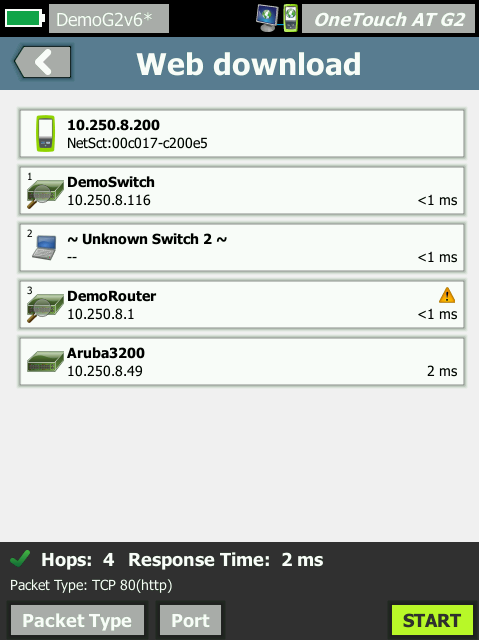
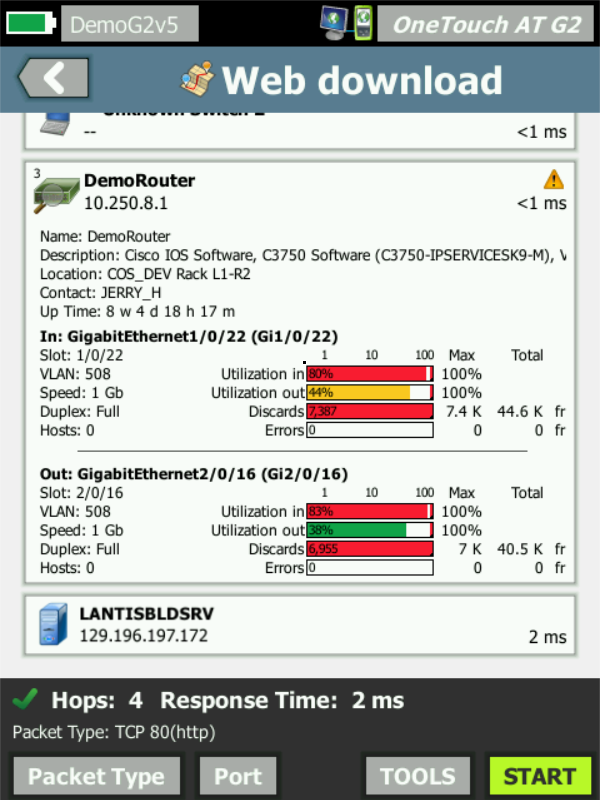
Automatically discover copper and fiber-connected devices and key device properties. Select from among fourteen different sorts to obtain different views into the wired network. For example, sort by IPv4 or IPv6 address to identify used and available addresses. Or sort by switch name/slot/port to understand where on the network devices are connected. Sort by discovered problems to quickly identify potential issues. Additional discovery-assisted analysis tools aid with troubleshooting and profile creation. For example, the Multiport Statistics tool provides visibility into switch, router and AP port statistics including speed, duplex, slot, port, VLANs, host count, utilization, discards and errors. The Devices on Port tool provides visibility into the devices connected to an individual switch port. The Path Analysis tool provides a layer 2 and 3 trace route from the OneTouch AT to a target device including time to each hop and SNMP switch and router port statistics.
Wi-Fi Network Discovery and Analysis
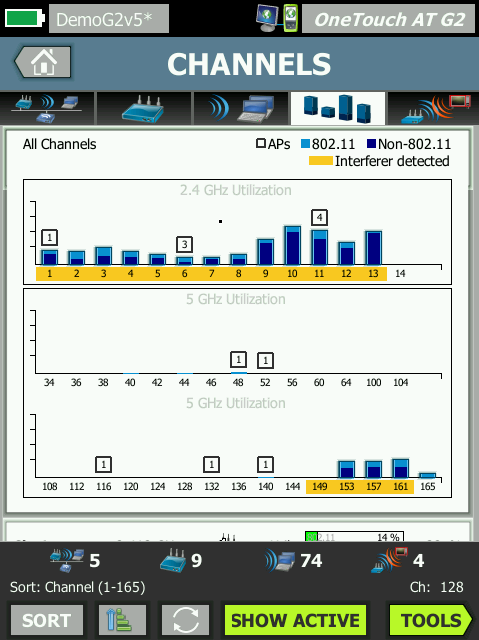
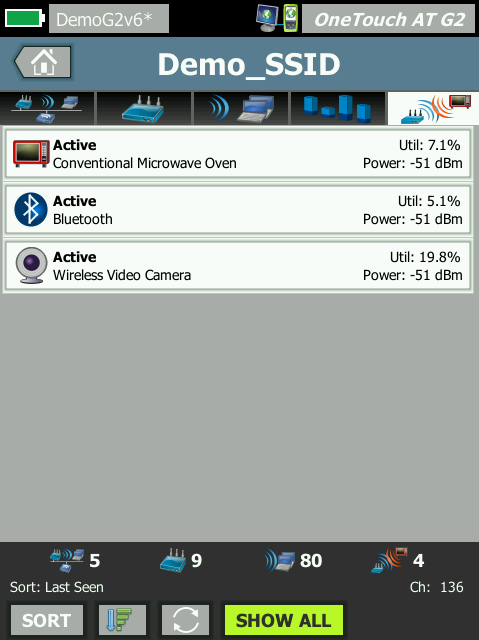
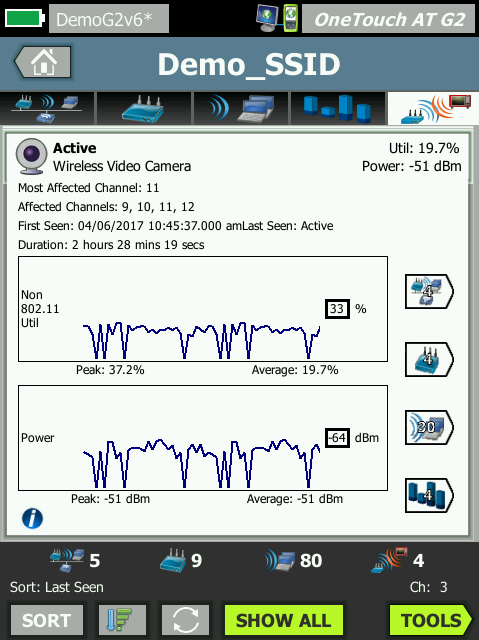
Automatically discover Wi-Fi devices and key device properties, including new 802.11ac access point and clients. Select from among twenty context-relative sorts to obtain different views into the wireless network. For example, sort by signal strength to troubleshoot Wi-Fi coverage issues. Sort by MAC manufacturer to discover Wi-Fi devices by type and to understand how they are connected relative to SSID, AP and channel. Sort by channel to identify channel spacing and usage problems. Sort by authorization status to find potential security violations. Additional discovery-assisted analysis tools aid with troubleshooting and security enforcement. If a Wi-Fi device is also discovered via Wired Analysis, the Cross Link feature enables one-button toggling between wired and Wi-Fi analysis views.
End-to-end path performance measurement
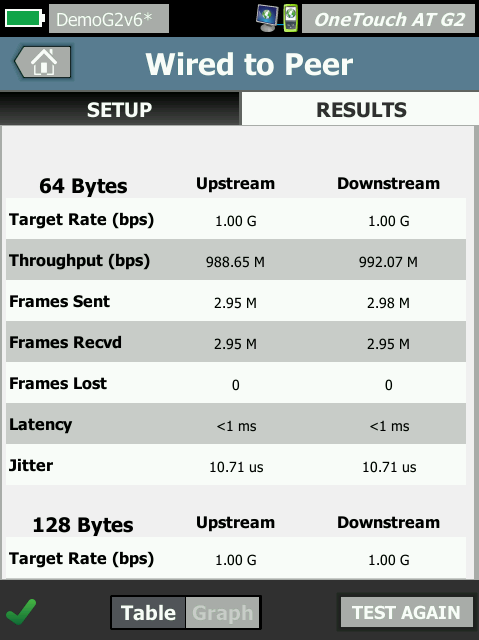
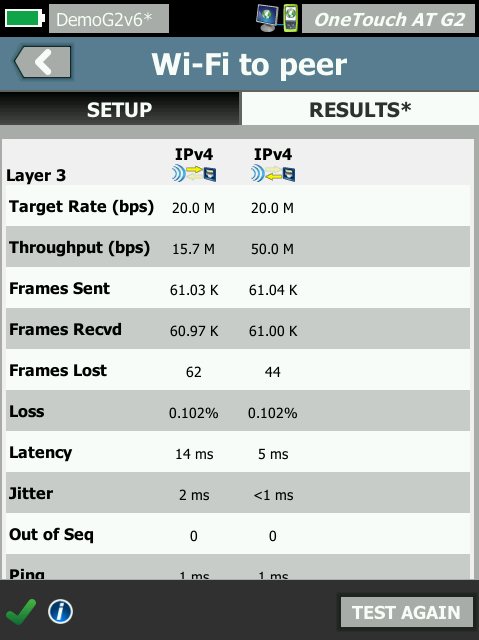
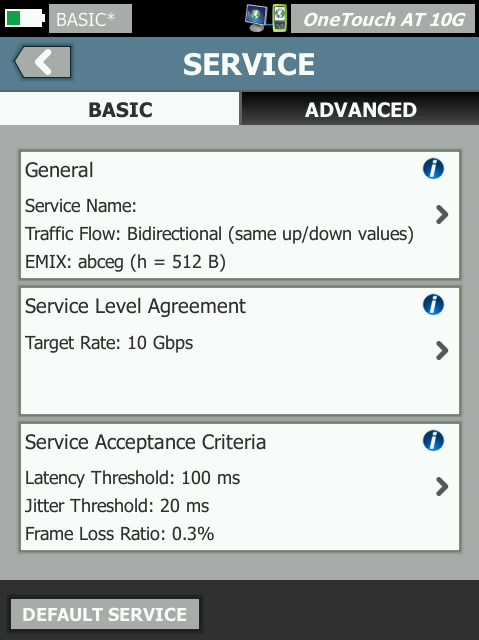
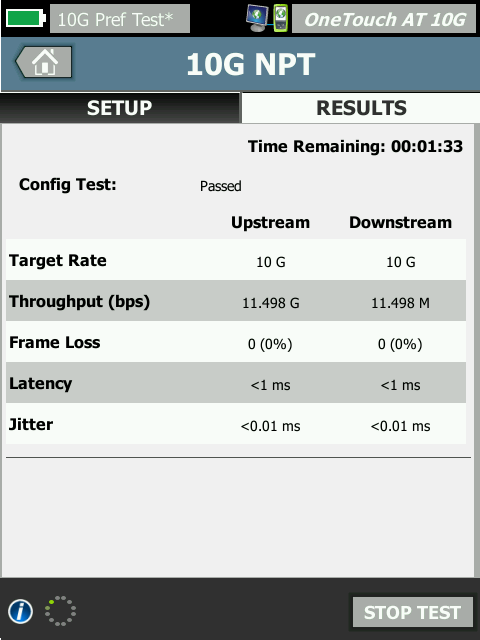
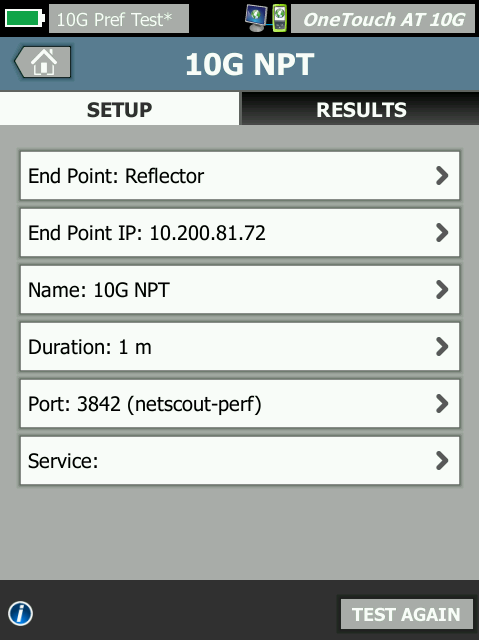
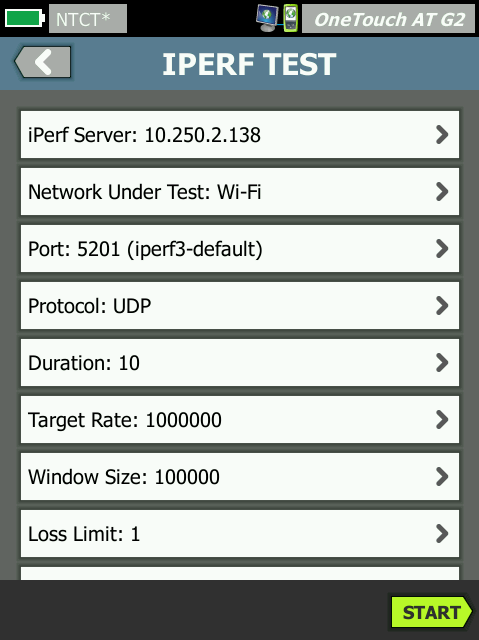
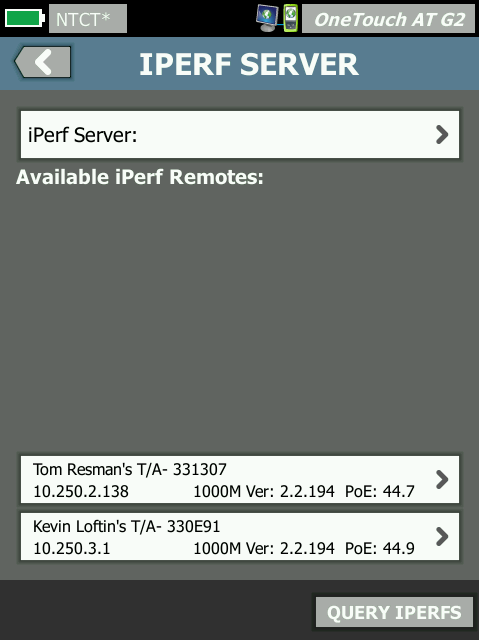
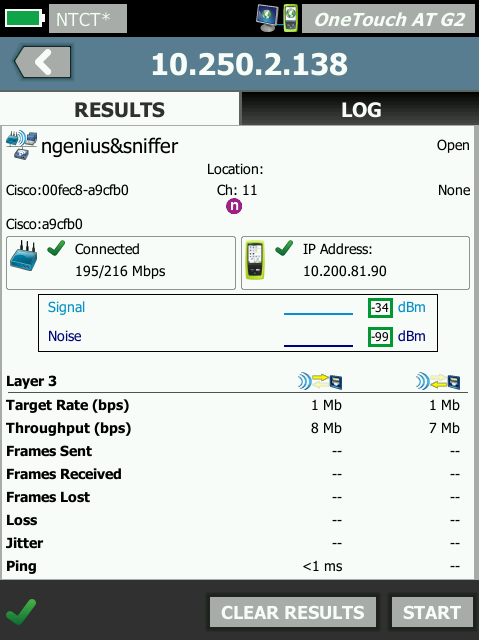
Ensure that the newly installed or upgraded wired and Wi-Fi networks meet SLA objectives and are ready for new high-bandwidth applications by measuring end-to-end path performance. Measure throughput, frame loss, latency and jitter between a local OneTouch AT and a remote OneTouch AT peer or a reflector such as LinkRunner or NPT Reflector software. A remote peer provides upstream and downstream results while a remote reflector yields round trip results. OneTouch AT G2 measures performance on copper and fiber networks at rates up to 1 Gbps based on RFC2544 algorithm on and 600 Mbps on Wi-Fi networks. OneTouch 10G can measure network performance up to 10 Gbps based on Y1564 against another OneTouch 10G Peer. OneTouch can also perform an iPerf test against any iPerf v3.x server or a NETSCOUT TEST-ACC over Wi-Fi or Wired network. It is best used to assess maximum throughput achievable for a TCP stream or network performance for UDP stream during troubleshooting.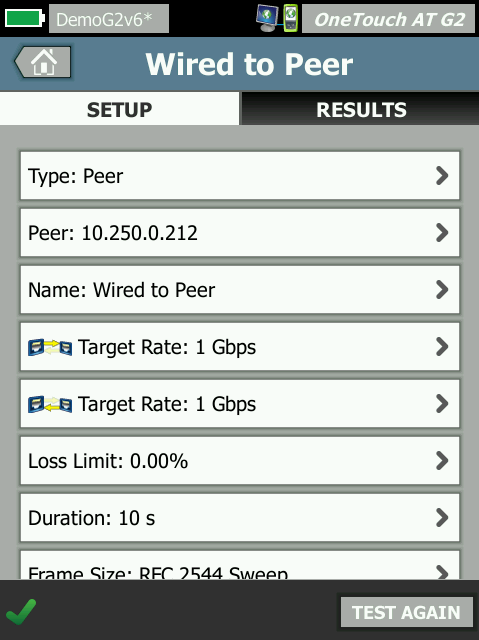
VoIP Analysis
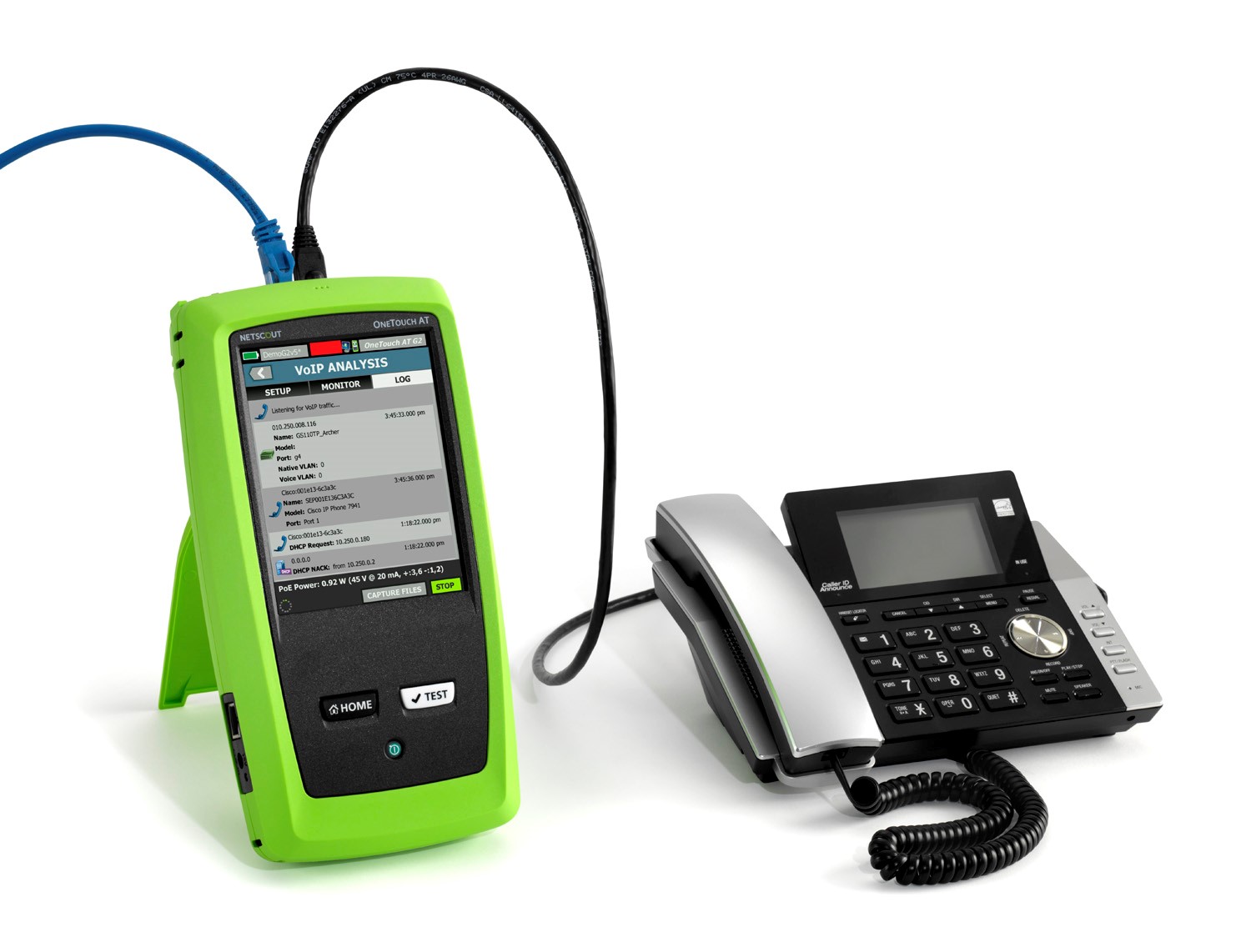
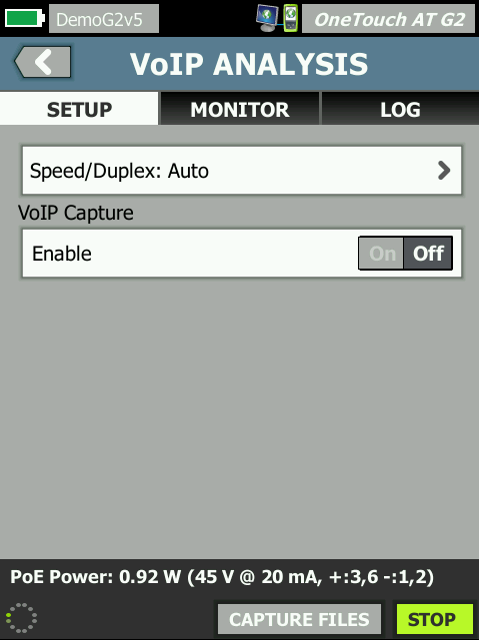
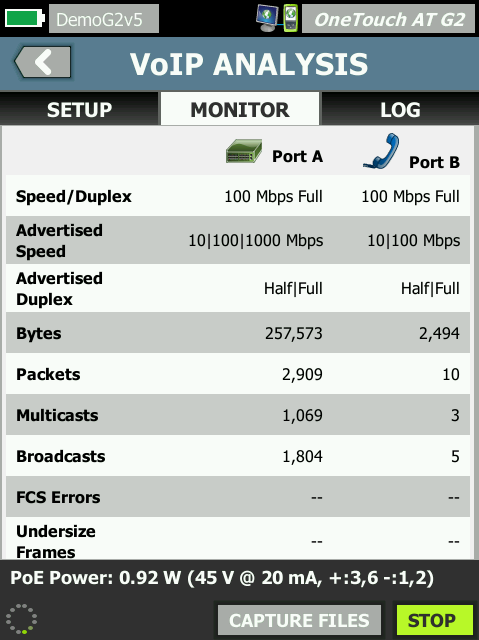
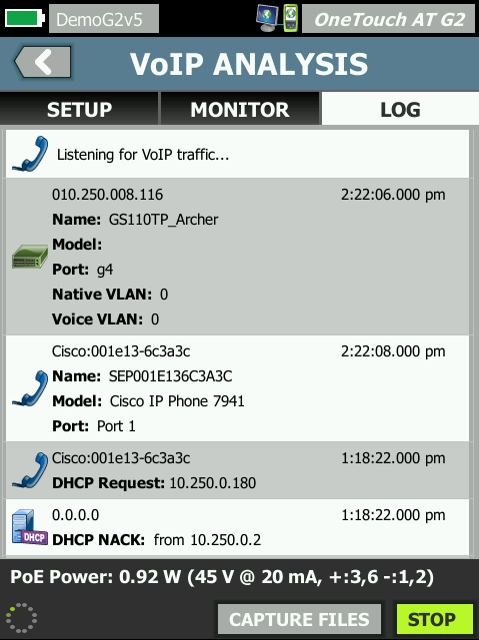
Connect the OneTouch AT inline between an IP phone and the network for real-time troubleshooting and analysis. The VoIP analysis test reveals issues related to PoE, DHCP, TFTP, SIP, and SCCP. The test provides visibility into unencrypted SIP and SCCP traffic to debug VoIP phone problems and quantify the quality of a VoIP call. Simultaneous capture of the VoIP conversation is optional.
Packet Capture
Capture wired, Wi-Fi, VoIP and AutoTest traffic when a packet-level view is required to solve a complex network or application issue. Filter the traffic to capture what is most important. Export the capture file to a PC for decoding and analysis using protocol analysis software. Capture wired traffic on a single port, on two ports aggregated, or inline between a client device and the network. Inline capture avoids the complexity, time and cost associated with standalone taps or configuring switch mirror ports. Capture Wi-Fi traffic by channel and mode (20 MHz or 40 MHz+).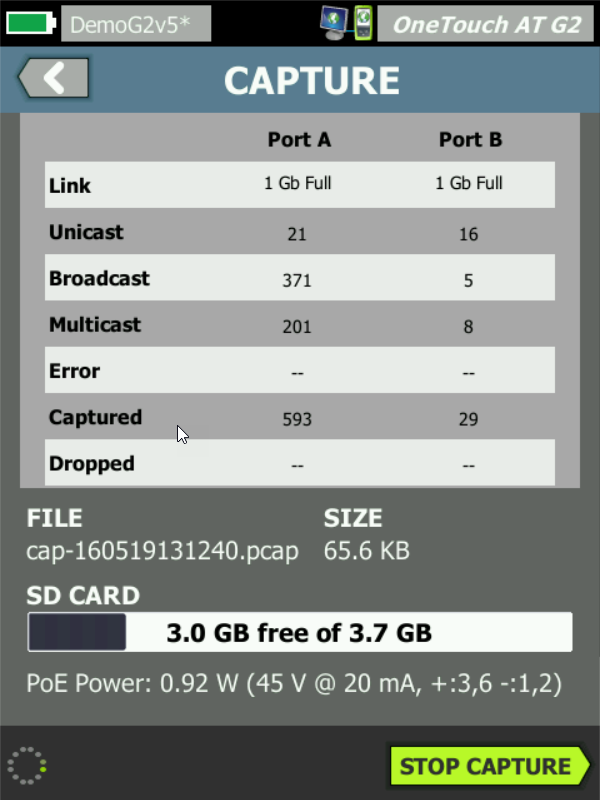
AllyCare Product Support
AllyCare Support for your OneTouch AT Network Assistant allows you to make the most of your OneTouch purchase while ensuring a higher return on your investment. You will minimize your downtime, receive faster trouble resolution and have total access to all support resources.What do you get with Gold Support for your OneTouch AT Network Assistant?
Repairs and loaner equipment — If your OneTouch should fail, we'll deliver a loaner unit via next business day to keep you up and running. We'll repair your OneTouch and replace defective or faulty accessories at no charge, with first on bench priority, plus return it to you—all shipping paid by NetAlly. Some accessories are essential to your OneTouch. The normal warranty on accessories is 90 days, but parts and accessories including the OneTouch battery will be replaced free of charge with AllyCare Support once qualified as defective by our technical assistance center. Repair/exchange (with pre-paid shipping) for primary Hardware/Accessories may not be available in certain countries worldwide. For a list of countries where these services are available, please see the AllyCare Availability list under the Support Section.
Software upgrades — Your OneTouch will never be out of date. You'll receive all software upgrades free—the only way to keep your OneTouch up-to-date.
Access to live 24 x 7 technical support — Extend the expertise of your staff. AllyCare Support includes direct, immediate telephone access to our world-class Technical Assistance Center (TAC), direct access only available to Gold Members. Gold Support customers have 24x7 access to technical support, which includes maintenance releases, enhancements, corrections, bug fixes, and modifications made to the Software that are provided to NetAlly customers generally as part of these AllyCare support services (collectively referred to as “Updates”) for covered Products; access to electronic incident submission and technical documentation such as user guides, frequently asked questions, and release notes; 24x7 access to self-help on the MyAccount or My AirMagnet Portal for technical answers; and knowledge transfer through NetAlly's online learning center. The Gold technical support team is staffed 24x5 and provides on-call weekend support for severity 1 issues (NetAlly product completely down with no workaround). All non-severity 1 issues received by telephone message, email or web on the weekend will be returned during staffed hours.
OneTouch AllyCare Support Members Online Training — Online training that can be utilized without having to take your staff out of the field can be a valuable tool. AllyCare Support Members have access to exclusive on-line training modules.
Unlimited access to our Knowledge Base — You'll have an open door to valuable proprietary information we've gathered from helping customers over the years. It also includes helpful technical articles written by our experts.
Ensure that you are getting the most out of your OneTouch AT Network Assistant with AllyCare Support Services.